
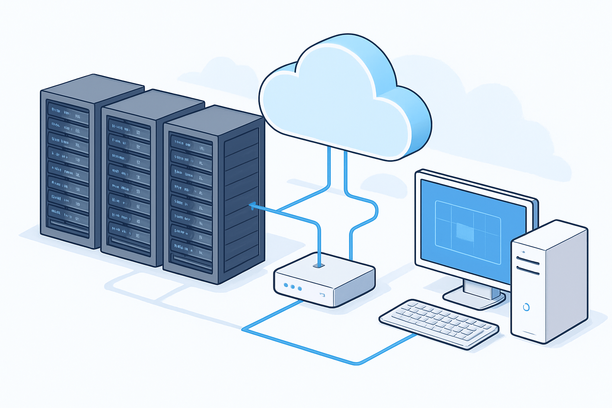
Deploying an AI studio application, such as Stable Diffusion WebUI or ComfyUI, on a cloud GPU server involves more than just spinning up an instance. A reliable setup requires careful selection of GPU hardware, a properly configured CUDA environment, and a secure, optimized operating system. This tutorial provides a structured workflow to get your generative AI tools running on a remote server, covering everything from initial instance provisioning to performance tuning.
Overview
Deploying a local AI studio on a cloud GPU is the process of setting up a remote server with the necessary graphics processing unit, software stack, and network configuration to run resource-intensive AI models for tasks like image generation, video processing, or large language model (LLM) inference. The core goal is to offload computationally heavy tasks from your local machine while maintaining accessible and controllable performance.
Why Deploy an AI Studio on a Cloud GPU Instead of Locally?
The primary advantage is access to high-performance hardware without the upfront capital expenditure. A cloud GPU instance provides on-demand access to NVIDIA A100, V100, or RTX 4090-class hardware, which may be prohibitively expensive or physically impractical for individual developers or small teams to own. This model also offers scalability; you can scale your instance up or down based on current project needs, paying only for the compute time you use.
Furthermore, cloud deployment separates your work from your local machine's resources. This means you can continue using your personal computer for other tasks while a large generation job runs on the server. Centralized data and models on a cloud server also facilitate easier collaboration and backup, as the working environment is self-contained on the remote instance.
How Do I Choose the Right Cloud GPU for My AI Studio Application?
Selecting the right GPU depends on three key factors: your specific model's VRAM requirements, your performance budget, and your data gravity. First, identify the largest model you plan to run (e.g., SDXL, Stable Video Diffusion, or a 7B-parameter LLM) and check its minimum VRAM. This is the non-negotiable starting point.
Next, consider the GPU generation and type. Newer architectures like the NVIDIA H100 or A100 offer superior FP16/TF32 performance, which accelerates model training and inference. For cost-effective inference, GPUs like the RTX 4090 or RTX 3090 provide excellent price-to-performance. Finally, consider network latency if you plan to transfer large datasets frequently, or choose a region geographically close to your primary users or data sources.
The table below compares common GPU tiers for different AI studio workloads.
| GPU Model | VRAM | Ideal Use Case | Key Considerations |
|---|---|---|---|
| NVIDIA RTX 3060 (12GB) | 12 GB | Entry-level Stable Diffusion, fine-tuning small models | Lowest cost, but may struggle with very large models or batch processing. |
| NVIDIA RTX 4090 | 24 GB | High-speed SD 1.5/SDXL inference, small LLM serving | Excellent consumer-grade performance, widely available. |
| NVIDIA A100 (40GB/80GB) | 40-80 GB | Large model training, multi-user inference, enterprise workloads | High-performance data-center GPU, higher cost. |
| NVIDIA H100 (80GB) | 80 GB | State-of-the-art training, complex scientific computing | Top-tier performance, highest cost. |
What Is the Core Deployment Workflow for an AI Studio on a GPU Server?
The deployment workflow is a sequential process that establishes a secure, performant, and manageable server environment. While specific steps can vary by cloud provider and OS, the core phases are universal. Following a structured checklist ensures no critical steps are missed.
Cloud GPU Server Deployment Checklist
- Provision a cloud instance with the selected GPU and sufficient system RAM (typically 32GB+).
- Install and configure the operating system (Ubuntu 22.04 LTS is a common choice for AI workloads).
- Secure the server: configure a firewall, create a non-root user with sudo privileges, and set up SSH key authentication.
- Install the NVIDIA GPU driver, CUDA Toolkit, and cuDNN, ensuring version compatibility with your AI framework.
- Install Python and your AI studio application (e.g., via Git clone).
- Set up a reverse proxy (like Nginx) and domain/SSL to access the web UI securely over HTTPS.
- Configure initial backups or snapshots for the server state.
- Test the deployment with a basic inference task and monitor GPU/CPU/RAM utilization.
How to Set Up a Secure and High-Performance Environment for an AI Studio?
Securing your GPU server is critical, as it will host potentially valuable models and data. Start with network security: configure the cloud provider's firewall to only allow SSH (port 22) and HTTP/HTTPS (ports 80/444) traffic from trusted IP addresses. For server-level security, it is a best practice to disable direct root login and use a dedicated user account. As demonstrated in RAKsmart's cloud management documentation, enabling two-factor authentication (2FA) for your account control panel adds a vital layer of security for managing billing and server lifecycle operations.
For performance, the GPU driver installation is the most critical step. Use the distribution's package manager (like apt) to install the driver from a trusted repository or the official NVIDIA .run file. After installing the NVIDIA driver and the CUDA Toolkit, verify the installation with nvidia-smi. This command should display your GPU model, current utilization, and memory usage. Further optimizations include setting up a swap file if system RAM is tight and configuring nvidia-smi to automatically reset the GPU if a process hangs, which is invaluable for long-running jobs.
RAKsmart as a Provider for AI Studio Deployment
When selecting a provider for your AI studio deployment, the availability of bare-metal cloud or high-performance VPS instances with direct GPU access is crucial. Providers offering bare-metal servers, as outlined in RAKsmart's documentation on server upgrades and recovery modes, allow for direct access to the physical GPU hardware, eliminating any potential virtualization overhead. This can be beneficial for demanding inference tasks. Furthermore, understanding how to manage your server lifecycle, from upgrading configurations to entering rescue modes for recovery, is essential for maintaining uptime on a production AI studio. The process for managing these administrative tasks, such as logging into your control panel to perform upgrades, is a fundamental part of long-term server operation.
Frequently Asked Questions
Can I run multiple AI models or users on a single cloud GPU server?
Yes, but it depends on the GPU's VRAM and your software configuration. You can run multiple instances of an AI studio on different ports or use tools like Automatic1111's --listen flag to serve multiple users. For efficient multi-model serving, frameworks like NVIDIA Triton Inference Server or vLLM are designed to manage resources and serve multiple models concurrently on a single GPU, maximizing utilization.
How do I transfer large models or datasets to my cloud GPU server?
The most efficient method is using command-line tools like scp (secure copy) or rsync over SSH. For very large datasets, consider first compressing them. Many cloud providers also offer integrated object storage (like S3) that can be mounted directly to your server instance, which can be faster for transferring terabytes of data compared to internet upload.
What happens to my running jobs if the cloud server restarts or crashes?
Any unsaved work in memory will be lost. It is crucial to implement a robust saving strategy for your application. Most AI studios have auto-save features for checkpoints and settings. Additionally, use your cloud provider's snapshot feature to create periodic backups of the entire server disk, and ensure your application logs and output directories are on persistent storage.
Is it cheaper to use a cloud GPU or rent a dedicated GPU server?
For intermittent, bursty workloads where you only need the GPU for a few hours a day, cloud GPU instances with pay-as-you-go pricing are almost always more economical. For 24/7 workloads or sustained usage over many months, a dedicated bare-metal server with a fixed monthly cost often provides better value. A break-even analysis based on your estimated monthly usage hours is recommended.
How can I monitor the GPU usage and performance of my AI studio?
The nvidia-smi command-line tool is the primary way to check real-time GPU memory usage, temperature, and utilization percentage. For continuous monitoring and logging, you can set up a script that runs nvidia-smi periodically. Additionally, tools like htop or glances monitor overall CPU and RAM usage, giving you a complete picture of server performance.
Conclusion and Next Steps
Deploying an AI studio on a cloud GPU transforms a powerful but complex setup into a manageable, remote workflow. By methodically selecting your hardware, securing the server, and optimizing the software stack, you create a stable foundation for experimentation and production. The key is to start with a clear understanding of your model's requirements and then build a secure, monitored environment around it.
For your project, the next step is to assess your specific workload. Once you have a clear idea of the GPU power and storage you need, you can evaluate the available cloud GPU plans that match those technical and budgetary requirements.