
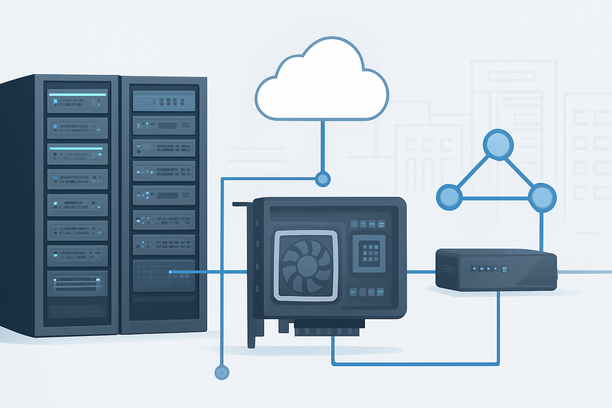
Deploying a large language model on a dedicated GPU server is a multi-stage process that moves beyond simply installing software. It requires careful planning for hardware compatibility, system configuration, model serving, and long-term operational security. This article provides a complete technical workflow, from selecting the right GPU and server infrastructure to hardening the production endpoint and establishing recovery procedures using advanced management features like BMC and rescue mode.
Overview
This guide walks through the essential phases of deploying an LLM on dedicated hardware. We will cover how to choose and provision a server with the necessary GPU resources, install and configure the operating system and drivers, deploy a high-performance serving framework, and secure the entire stack for production traffic. The focus is on creating a stable, manageable, and recoverable deployment.
Hardware and Infrastructure Selection: What Do You Need?
The foundation of your deployment is a server with adequate GPU memory, compute power, and network bandwidth to serve your chosen model at the required latency. The primary decision is the GPU itself, which dictates the maximum model size and quantization level you can run.
For most open-source models (e.g., Llama 2/3, Mistral), an NVIDIA GPU with at least 16GB of VRAM (like an A10G or RTX 4090) is a starting point for 7-13B parameter models. For larger models (70B+) or lower latency at high concurrency, you will need server-grade GPUs like the NVIDIA A100 (40GB/80GB) or H100 (80GB).
| GPU Tier | Example Models (FP16) | Typical Use Case |
|---|---|---|
| Entry (16-24GB VRAM) | Llama 3 8B, Mistral 7B | Development, small-scale API |
| Performance (40-48GB VRAM) | Llama 3 70B (quantized), Mixtral 8x7B | Production for moderate traffic |
| Enterprise (80GB+ VRAM) | Llama 3 405B (quantized), GPT-4 scale | High-concurrency, low-latency |
Beyond the GPU, ensure your dedicated server has sufficient RAM (at least 32GB, but 64GB+ is recommended), fast NVMe storage for model weights, and a network connection with high bandwidth and low latency to your user base.
Operating System and Driver Installation
A clean Linux installation is the standard for AI workloads. Ubuntu Server 22.04 LTS is a widely supported choice. After OS installation, the NVIDIA driver and CUDA toolkit are the most critical components.
- Install NVIDIA Drivers: Use the official NVIDIA package repository for your distribution to install the latest production driver. Avoid using generic open-source Nouveau drivers.
- Install CUDA Toolkit: Install the CUDA toolkit version compatible with your desired ML frameworks (e.g., PyTorch, TensorFlow). This provides the necessary libraries like cuDNN.
- Verify Installation: Run
nvidia-smito confirm the driver is loaded and the GPU is detected. This tool will be your primary monitor for GPU utilization and memory.
Deploying the LLM Serving Framework
The serving framework is the software layer that loads your model into GPU memory and handles inference requests. Your choice impacts performance, features, and ease of management.
Common Framework Comparison:
- vLLM: Offers high throughput and efficient memory management with PagedAttention. Ideal for serving multiple concurrent users.
- llama.cpp: A lightweight, CPU-and-GPU portability layer. Excellent for smaller models or when you need to run inference on consumer-grade hardware.
- Text Generation Inference (TGI): A robust, production-ready toolkit from Hugging Face with built-in support for quantization, batching, and monitoring.
A typical deployment workflow using vLLM might look like this:
- Install Python and create a virtual environment.
- Install PyTorch with CUDA support.
- Install vLLM via pip:
pip install vllm - Launch the server with your model:
vllm serve [MODEL_NAME] --tensor-parallel-size [NUM_GPUS]
This starts an OpenAI-compatible API endpoint that your application can communicate with.
Securing the Endpoint: Authentication, Firewall, and BMC
A production server must be secured against unauthorized access and configured for resilient remote management.
Network and Application Security:
- Firewall Configuration: Use
ufworiptablesto restrict access. Allow only necessary ports (e.g., 8000 for vLLM API, 22 for SSH) and block all others. - API Authentication: Implement API key authentication for all requests to your inference endpoint. Never expose an unprotected model server.
- HTTPS: Place a reverse proxy (like Nginx) in front of your API to terminate SSL/TLS and handle routing.
Hardware-Level Management with BMC: The Baseboard Management Controller (BMC) is an embedded system that provides out-of-band remote management, critical for recovery when the main OS is unresponsive. Features include remote power control, a virtual console (VNC), and hardware monitoring.
If you need to perform tasks like resetting a forgotten root password, you can use the control panel's "Crack the code" feature. For detailed steps, refer to the guide on resetting a dedicated server machine password. This level of access ensures you can always regain control of your server.
Monitoring and Proactive Maintenance
Continuous monitoring is essential for performance tuning and early fault detection.
- GPU Metrics: Use
nvidia-smiordcgm-exporterwith Prometheus to track GPU temperature, utilization, and memory usage over time. - Application Metrics: Your serving framework should expose metrics like request latency, tokens per second, and queue length. Grafana is excellent for visualizing this data.
- System Health: Monitor disk space, network bandwidth, and system logs for errors.
When a system failure occurs, such as an OS crash, you need a recovery plan. The Rescue Mode feature allows you to boot the server into a minimal environment to back up critical data or repair the file system. For Linux or Windows servers, you can select the appropriate rescue system type from your control panel to begin recovery. Understanding how to use rescue mode on a dedicated server is a key operational skill.
Conclusion
Successfully deploying an LLM on a dedicated GPU server requires a holistic approach that encompasses hardware selection, software configuration, security hardening, and operational readiness. By following a structured workflow—from choosing the right GPU and installing drivers to deploying a serving framework and securing the endpoint with BMC and firewall rules—you build a foundation that is both high-performing and resilient.
For a reliable hardware foundation that supports these operational needs, evaluating dedicated server providers with robust remote management and recovery features is a practical next step. Providers like RAKsmart offer dedicated GPU servers with integrated BMC/IPMI and rescue mode capabilities, streamlining the management of your AI infrastructure.
If you are ready to build your own high-performance inference environment, exploring dedicated server configurations that align with your model's requirements is the logical first move.
Frequently Asked Questions
What GPU VRAM do I need to run a 70B parameter model?
Running a 70B parameter model in FP16 requires approximately 140GB of VRAM, which necessitates multi-GPU setups. However, using quantization techniques like GPTQ or AWQ (4-bit or 8-bit) can reduce the VRAM requirement significantly, allowing it to fit on a single 80GB GPU like an NVIDIA A100 or H100.
How do I choose between vLLM, llama.cpp, and TGI?
Choose vLLM if your priority is maximizing throughput for many concurrent users. Choose llama.cpp for its lightweight footprint and flexibility across different hardware, including CPUs. Choose TGI if you need a feature-rich, production-ready solution with excellent logging and integration with the Hugging Face ecosystem.
What should I monitor to ensure my LLM server is performing well?
Monitor GPU utilization and memory usage to ensure the model is efficiently using hardware resources. Track application-level metrics like Time to First Token (TTFT) and Tokens per Second to measure user-perceived latency. Also, watch system resources like disk I/O and network bandwidth, especially during peak load.
How can I secure my LLM API endpoint from abuse?
Start with a strict firewall policy that only allows traffic from known IP ranges if possible. Implement mandatory API key authentication for all requests. Consider adding rate limiting at the reverse proxy or application level to prevent single clients from overwhelming the service. Always use HTTPS.
What do I do if my dedicated server becomes unresponsive and I can't SSH in?
Use the Baseboard Management Controller (BMC) to access the server out-of-band. Through the BMC interface (often accessible via your hosting control panel), you can open a VNC console to interact with the OS directly, view the boot process, or force a restart. If the OS is corrupted, you can use the rescue mode feature to boot into a recovery system.