
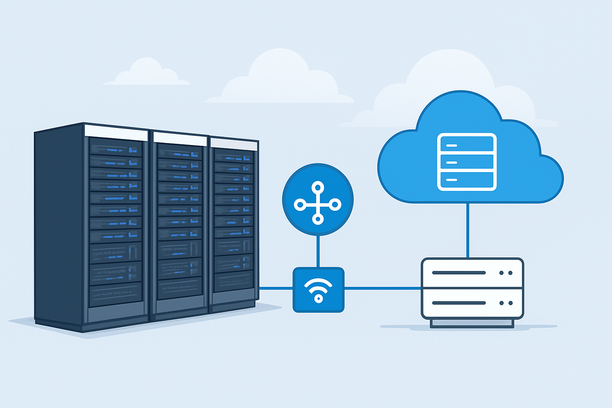
Properly setting up an AI studio server is the critical first step in building a reliable, high-performance environment for model inference, fine-tuning, or data processing. A meticulous initial configuration prevents weeks of troubleshooting and ensures your GPU resources are fully available from day one. This guide walks you through the essential phases, from selecting and accessing your hardware to installing the core software stack and preparing the server for production monitoring.
Overview: Building the Foundation for AI Workloads
A complete AI studio server setup involves more than just installing an operating system. It requires careful planning of the hardware layer, establishing secure and reliable remote management access, correctly installing and verifying the GPU driver and CUDA toolkit, and configuring the network and monitoring systems. This end-to-end process transforms a bare-metal server into a dedicated, high-throughput node ready for demanding AI tasks. We will cover each phase with practical, actionable steps.
How Do I Choose and Access My Dedicated AI Server?
The first decision involves selecting a server with sufficient GPU power (VRAM, compute cores) and network connectivity for your workload. Once provisioned, your immediate challenge is establishing remote access to configure it.
Why Server Location and Network Path Matter
For AI workloads, especially those serving end-users or accessing distributed data, server location is a primary performance factor. Placing your server in a data center close to your user base minimizes latency. Network quality is equally important; a premium route like CN2 GIA for traffic to Asia or a well-peered network in North America ensures consistent low-latency data transfer, which is crucial for real-time applications. A server with powerful GPUs but poor network connectivity will still deliver a sluggish experience.
Step 1: Gaining Initial Remote Access via BMC/IPMI
Most dedicated servers are accessed initially through the Baseboard Management Controller (BMC), also known as IPMI. This is an embedded system that allows out-of-band management, letting you power on/off the server, open a remote console (VNC), and even mount installation ISOs without a local display. To log in:
- Find your server's details in your provider's control panel.
- Locate the BMC/IPMI login credentials (often labeled "Server Info" or "Panel Password").
- Use the provided IPMI IP address to access the web interface.
- From the web console, you can open a remote VNC window to see the server's screen output.
If you encounter issues where the remote console is unresponsive or you cannot log in, a BMC reset is a common first troubleshooting step (BMC Reset on Dedicated Server).
What Are the Core Steps for OS and GPU Stack Installation?
With console access established, the next phase is installing the operating system and the essential NVIDIA software stack. This process must be done methodically to avoid later driver conflicts.
Installing the Base Operating System
Most AI workloads run on Linux distributions like Ubuntu Server, CentOS, or Rocky Linux due to their stability and driver support. Use your BMC's virtual media feature to mount the installation ISO. After the OS is installed:
- Run a full system update (
sudo apt update && sudo apt upgrade -yon Ubuntu/Debian orsudo dnf update -yon RHEL-based systems). - Install essential development tools (
build-essential,git, etc.). - Set a static IP address to ensure consistent network access.
Installing the NVIDIA Driver and CUDA Toolkit
This is the most critical step for GPU performance. Avoid using the generic drivers from the OS package manager; they are often outdated.
- Download: Visit NVIDIA's official website and download the latest "Data Center Driver for Linux."
- Pre-installation Checks: Ensure you have the correct kernel headers installed.
- Installation: Run the
.runfile and follow the prompts. It's often wise to install only the driver first, then reboot, and install the CUDA toolkit separately. - Verification: After rebooting, run
nvidia-smi. A successful setup will display your GPU model, driver version, CUDA version, and current memory usage. This confirms the driver is loaded and the GPU is accessible.
Configuring Docker for GPU Access (Optional but Recommended)
Containerizing your AI environment ensures reproducibility. To allow Docker containers to use the GPU:
You can now run containers with the --gpus all flag, and nvidia-smi executed inside the container will show the host GPU.
- Install Docker and Docker Compose.
- Install the NVIDIA Container Toolkit.
- Restart the Docker daemon (
sudo systemctl restart docker).
How Do I Optimize Network and Prepare for Monitoring?
A production server requires a configured network and proactive monitoring to maintain performance and availability.
Network Configuration for AI Studio
Ensure your server's firewall (UFW, firewalld) is configured to allow necessary traffic (e.g., SSH on port 22, API ports for your inference server). If you are serving API endpoints, use a reverse proxy like Nginx to handle SSL termination and load balancing. The network path should be verified using tools like mtr or ping to key destinations to measure latency and packet loss.
Implementing Basic Server Monitoring
You need to track resource usage to detect issues before they affect performance. Key areas include:
- GPU Metrics: Use
nvidia-smiperiodically or with a script to log utilization, temperature, and power draw. - System Metrics: Monitor CPU, RAM, and disk I/O with tools like
htop,iotop, andsar. - Network Traffic: Understanding your inbound and outbound data flow is essential for capacity planning and detecting anomalies. Many hosting providers offer visualized traffic statistics directly in their client portal, allowing you to view usage over periods like the past 24 hours, 7 days, or 30 days to spot trends (Dedicated Server Traffic Statistics).
Comparison of Initial Remote Access Methods
Choosing the right remote access method depends on your phase of setup and the problem you're solving.
| Method | Protocol / Interface | Best Use Case | Typical Credentials Source |
|---|---|---|---|
| BMC/IPMI Web Console | HTTPS (Web UI) | Initial server power-on, OS installation via virtual media, hardware-level troubleshooting. | Server provider's control panel (Product Details). |
| Remote VNC | VNC over IPMI | Graphical interaction during OS installation or when the OS network stack is down. | Accessible through the BMC Web Console. |
| SSH | TCP Port 22 (CLI) | Day-to-day server administration, command-line operations, secure file transfer. | Set during OS installation or via provider's password reset tool. |
| RDP | TCP Port 3389 (GUI) | Remote desktop access for Windows Server-based AI studios. | Windows administrator account set during OS install. |
Your AI Studio Server Production-Ready Checklist
Use this checklist to ensure all foundational steps are complete before deploying your first model.
- Physical Access Verified: You can successfully log into the BMC/IPMI web interface.
- Remote Console Tested: You can open a VNC or KVM window and see the server's console.
- OS Installed & Updated: The chosen Linux or Windows OS is installed, fully updated, and has a static network configuration.
- GPU Driver Confirmed: The
nvidia-smicommand returns valid GPU information without errors. - CUDA Toolkit Functional: You can compile and run a simple CUDA sample program (e.g.,
deviceQuery). - Firewall Configured: Only necessary ports are open; SSH access is secured (key-based auth recommended).
- Docker (if used): NVIDIA Container Toolkit is installed, and a test container can access the GPU.
- Monitoring Basics: A simple monitoring script for GPU metrics is in place, and you know how to access traffic statistics from your provider.
- Access Credentials Documented: You have securely recorded the IPs, usernames, and passwords for BMC, OS, and any other services.
FAQ
Can I set up an AI server if I'm only comfortable with the command line?
Yes, absolutely. The entire process for a Linux-based AI studio—from OS installation to driver setup—can be completed via command line after your initial BMC/IPMI access. Tools like nvidia-smi are CLI-only. A graphical desktop environment is not required and is often skipped to save resources.
What should I do if nvidia-smi returns "no devices were found" after driver installation?
First, verify the driver is loaded with lsmod | grep nvidia. If not, check the kernel logs (dmesg | grep -i nvidia) for errors. Common issues are Secure Boot blocking the unsigned driver module, a mismatch between the installed driver and kernel headers, or the need for a full system reboot after installation.
Is it necessary to install the CUDA toolkit if I'm only running pre-trained models via containers?
If you are only pulling and running pre-made Docker images from NVIDIA NGC or similar, the host system only requires the NVIDIA driver and the NVIDIA Container Toolkit. The CUDA toolkit and development libraries are typically included within the container image itself. You only need the host CUDA toolkit if you plan to compile custom CUDA code on the server itself.
How do I access my dedicated server if I forget the root or administrator password?
Most providers offer a password reset feature through their client portal, which often involves booting the server into a rescue mode or using a BMC function to crack/reset the default administrator password. This typically resets the password for the default root (Linux) or Administrator (Windows) account.
What is the first thing to check if my AI inference latency is suddenly high?
Start by checking the GPU utilization with nvidia-smi. If it's at or near 100%, your model is likely compute-bound. If utilization is low, the bottleneck is elsewhere—check network latency with ping, system CPU/RAM usage with htop, and disk I/O with iostat to see if data loading is stalling the GPU.
Conclusion
A methodical AI studio server setup—beginning with secure hardware access and concluding with a verified software stack—creates a stable and performant foundation for your AI workloads. By carefully configuring each layer from the network path to the GPU driver, you prevent common operational pitfalls and ensure your server is production-ready from the start. This systematic approach allows you to focus on developing and deploying your models rather than diagnosing foundational issues.
With your server environment prepared, you can focus on deploying your applications. To explore a range of dedicated servers with the GPU power and network reliability needed for AI studio operations, consider reviewing current configurations and promotions on our server offerings page.