
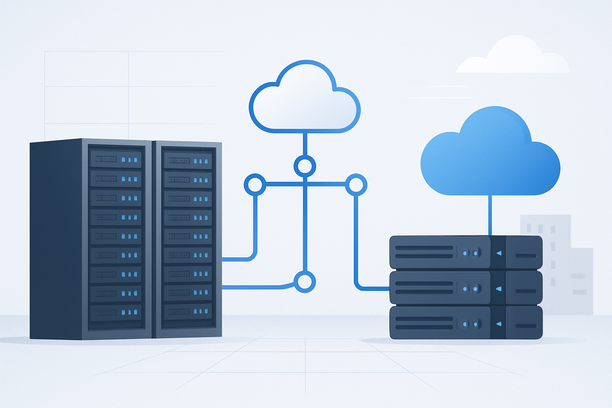
An effective AI studio server setup transforms raw hardware into a dedicated environment for developing, training, and serving machine learning models. This process moves beyond simple installation, requiring deliberate configuration of compute resources, storage, networking, and the software stack to ensure performance, stability, and security for AI workflows. This guide provides a practical roadmap for preparing your server infrastructure and deploying the necessary tools.
Overview: What Does an AI Studio Server Setup Entail?
Setting up an AI studio server involves provisioning physical or virtual hardware with appropriate CPU, GPU, and memory resources, installing and configuring a stable operating system, and deploying the essential software stack—including drivers, containerization platforms, and machine learning frameworks—to create a functional environment for AI development and deployment.
Why Server Preparation is Critical for AI Workloads
The performance of your AI studio is directly tied to the underlying server configuration. Underprovisioned resources lead to slow training times and frustrating bottlenecks, while poorly configured software environments can cause compatibility issues and system instability. Proper preparation ensures you can iterate on models efficiently and deploy them reliably.
Choosing and Preparing Your Server Hardware
The foundation of your AI studio is the server hardware. The choice between a dedicated physical server and a bare-metal cloud instance depends on your performance needs, budget, and operational preferences.
Key Hardware Considerations:
- GPU (Graphics Processing Unit): The most critical component for accelerating deep learning. The choice of GPU dictates the scale of models you can train. NVIDIA GPUs are the industry standard due to their CUDA ecosystem.
- CPU: Handles data preprocessing, orchestration, and tasks not suited for GPUs. A modern multi-core CPU is essential.
- RAM (System Memory): Sufficient RAM prevents bottlenecks when loading datasets into memory or running multiple services.
- Storage: High-speed NVMe SSDs are crucial for fast data loading and model saving. The capacity should accommodate datasets and model checkpoints.
The following table compares common GPU choices for different AI studio use cases.
| GPU Category | Example Models | Typical Use Case | Key Consideration |
|---|---|---|---|
| Entry-Level / Development | NVIDIA RTX 3060, RTX 4070 | Fine-tuning smaller models, inference, learning | Cost-effective, consumer-grade drivers |
| Professional / Training | NVIDIA RTX 3090, RTX 4090 | Training mid-sized models, high-throughput inference | Large VRAM (24GB), excellent performance per dollar |
| Enterprise / Large Scale | NVIDIA A100, H100 | Training very large models, multi-node clusters | Enterprise support, NVLink, optimized for data centers |
Operating System Selection and Installation
Linux is the dominant and recommended operating system for AI development due to its superior support for NVIDIA drivers, CUDA toolkit, and machine learning frameworks. Ubuntu Server LTS versions are particularly popular for their stability and extensive community support.
Installation Steps:
- Boot from Installer: Use your server's management console (like the BMC interface mentioned in technical documentation) to mount the OS installation media and boot.
- Configure Partitions: For optimal performance, partition the drives to separate the OS, application software, and data. A common setup uses a small partition for the root filesystem and larger partitions for
/home,/data, or dedicated mount points for datasets and model storage. - Complete Installation: Follow the prompts to set the hostname, user account, and basic network settings.
If you encounter a black screen or inability to access the desktop on Windows Server after software changes, it may have inadvertently entered Core mode. The solution often involves using Task Manager to open a command prompt and executing a command to restore the graphical interface, as detailed in this guide on recovering a Windows Server desktop.
Essential Server Configuration and Software Stack
With the OS installed, you must prepare the system for AI workloads. This involves driver installation, environment management, and deploying core software.
Step-by-Step Software Setup:
- Update the System: Always start with a full system update. On Ubuntu:
sudo apt update && sudo apt upgrade -y. - Install GPU Drivers: For NVIDIA GPUs, install the proprietary drivers. Use the Ubuntu "Additional Drivers" utility or the command line:
sudo apt install nvidia-driver-535Reboot after installation.
- Install CUDA Toolkit: This provides the development tools for GPU-accelerated computing. Follow NVIDIA's official instructions for your distribution.
- Install Docker: Containers are ideal for managing complex AI environments. Docker isolates dependencies and ensures reproducibility.
 sudo apt install docker.io
 sudo systemctl start docker
 sudo systemctl enable docker
 sudo usermod -aG docker $USER
Log out and back in for group changes to take effect.
- Install NVIDIA Container Toolkit: This allows Docker containers to access the host's GPUs.
- Deploy ML Frameworks: Use Docker to pull official images for PyTorch, TensorFlow, or other frameworks. This avoids polluting the host system and simplifies version management.
Network and Storage Optimization
A well-configured server also manages data flow efficiently.
- Network: Ensure you have a stable, high-bandwidth connection to transfer large datasets and model files. If you need to manage or monitor network traffic, server platforms often provide tools to visualize usage over different time periods.
- Storage: Mount your high-performance SSDs. Use tools like
fioto benchmark their performance and ensure they meet the demands of your data pipeline. For dedicated servers, you may need to format and partition physical drives, a process that can involve entering a rescue mode to use disk management utilities.
Deployment Checklist: Is Your AI Studio Server Ready?
Use this checklist to verify your server is fully prepared for AI development.
- System is fully updated with latest security patches.
- GPU drivers and CUDA toolkit are installed and functional (verify with
nvidia-smi). - Docker and NVIDIA Container Toolkit are installed, and your user account has Docker permissions.
- A base AI framework container (e.g., PyTorch, TensorFlow) can be run with GPU access.
- Storage is correctly partitioned and mounted, with sufficient free space.
- SSH access is configured for remote administration, with firewall rules in place.
- A system monitoring solution (like
htoporglances) is installed.
Scaling and Upgrading Your Infrastructure
As your projects grow, your initial server configuration may become a bottleneck. It's important to know how to scale. For bare-metal cloud servers, platforms typically offer an upgrade path through their management console, allowing you to increase CPU, RAM, or storage with minimal downtime. The process involves selecting the server, choosing the new configuration, and confirming the change. Be aware that such upgrades usually trigger a restart.
For persistent performance issues or hardware failures on dedicated servers, you can often use out-of-band management tools to perform a BMC reset or other diagnostic actions remotely.
Conclusion
A properly set up AI studio server is a powerful asset, enabling rapid experimentation and deployment of AI models. The process begins with selecting the right hardware and moves through careful OS installation, driver configuration, and software deployment. By following a structured approach—prioritizing GPU readiness, containerization, and system optimization—you create a stable and performant foundation. With the server infrastructure in place, you can focus on what truly matters: building and refining your AI applications.
If you are starting a new project and evaluating infrastructure providers, exploring hosting options that offer robust bare-metal servers with GPU support and flexible management tools can provide the performance and control needed for demanding AI workloads.